
My Toolbox 🧰
Published: 19 August 2026 Last Updated: 19 August 2026
Here’s a list of my favourite software and tools that I actually use daily. I kept things simple and only included the stuff I rely on to get shit done. Some of these I’ve been using for years, some I’ve only discovered recently, and most of them replaced something else along the way.
I’ll also share a few tips and features that I’ve picked up along the way.
Browser: Vivaldi
Previous Browsers: Netscape Navigator → Internet Explorer → Firefox → Chrome
Website: https://vivaldi.com
Cost: Free
Chrome was such a big upgrade in my browsing experience, but over time it became a bloat, and very annoying to use. When it was announced that they’d be discontinuing manifest v2, essentially eliminating uBlock Origin, I knew it was time to move away from Chrome into something else. I had actually been following Vivaldi’s development closely for around 10 years before switching, it was the only browser that really stood out as an alternative that I could enjoy. It gives me a lot more freedom over Chrome, it feels a lot smoother and everything seems to load much faster (Other than Facebook for some reason but who cares about that.)
💡 Pro Tip: Use Workspaces, they allow you to have separate areas for different things. I’m not a huge fan of other browsers approaches to this with “tab groups” etc. Workspaces let you seamlessly switch between a different set of tabs without affecting your current view.
Text Editor: Notepad++
Previous Text Editors: Notepad
Website: https://notepad-plus-plus.org
Cost: Free
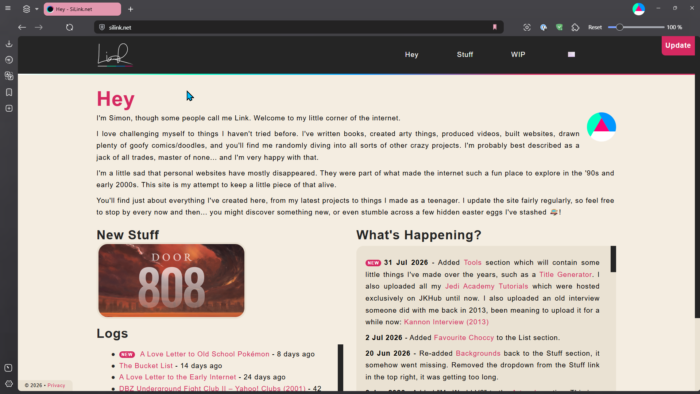
I don’t know how long I’ve been using Notepad++ but it feels like an eternity. Moving on from Notepad to Notepad++ was an unreal experience, what an upgrade. It can do the most complex of tasks or simply act as a note taking app, which is my primary use. Even in my job, I use Notepad++ to collect my thoughts, take notes and remind myself of things I need to do. I also use it exclusively for when I’m coding something (HTML, CSS, PHP, JS etc).
I’ve tried planners, organisers, list makers, I think I’ve tried them all and I keep coming back to the basics… a blank page with some messy text on it. I really can’t do much without Notepad++ these days honestly.
💡 Tip: Spend time in the Preferences/Settings of Notepad++ and get it set up exactly as you’d like. Mine looks totally different to the “out of the box”.
Video Editor: Vegas Pro
Previous Video Editors: Windows Movie Maker
Website: https://www.vegascreativesoftware.com/vegas-pro/
Cost: ~£170, but look for it VERY cheap on Humble Bundle regularly (See tip below).
Back in my teenage years, I loved using Windows Movie Maker so much because it was easy and accessible to someone without video editing experience. I found out quite quickly how limited the software was though, especially when it came to “layering” different videos/music/sounds, you’d essentially be given one timeline and you had to queue things up. I remember trying to work around this by exporting the .wmv file (Merging all the layers) and re-importing the file to add another layer… this worked, but the quality of the video suffered harshly (Very similar to saving JPGs constantly).
💡 Tip: Subscribe to Humble Bundle newsletters and watch for Vegas Pro. The bundles and upgrades you can get are insane, for example I paid around £20 to get Vegas Pro, then every few years I’ll upgrade a version for another £20. Usually it’s around £200!
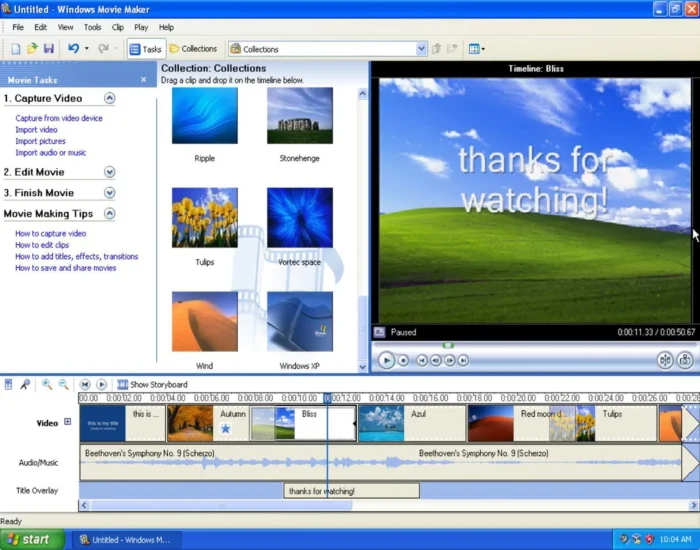
The good old days of Windows Movie Maker.
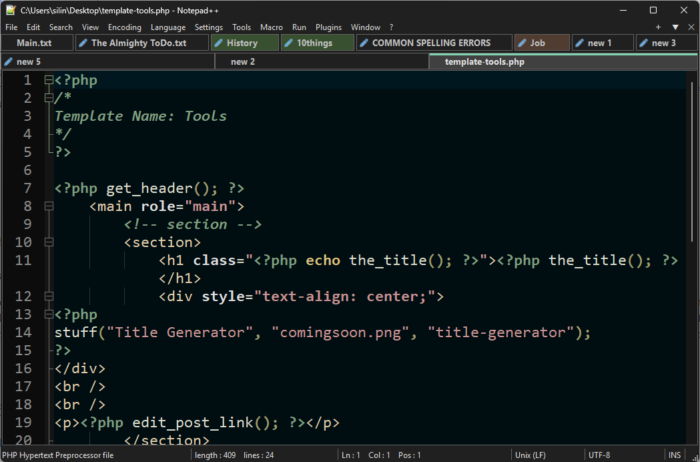
I eventually plucked up the courage to try Vegas Pro, and it couldn’t have gone better. It reminds me of Photoshop where the basics are easy, but more advanced tools are available. I’ve tried using e.g. Adobe Premiere, DaVinci but honestly I really like the traditional approach of Vegas Pro and how it works with timelines.
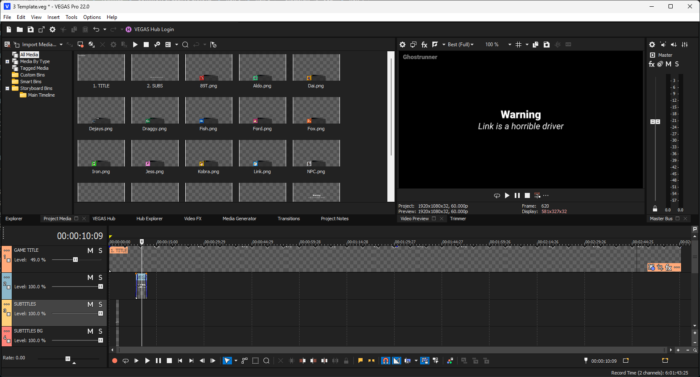
Image Manipulation: Photoshop
Previous Image Manipulators: Microsoft Paint → PaintShop Pro
Website: https://www.adobe.com/uk/products/photoshop.html
Cost: Too much
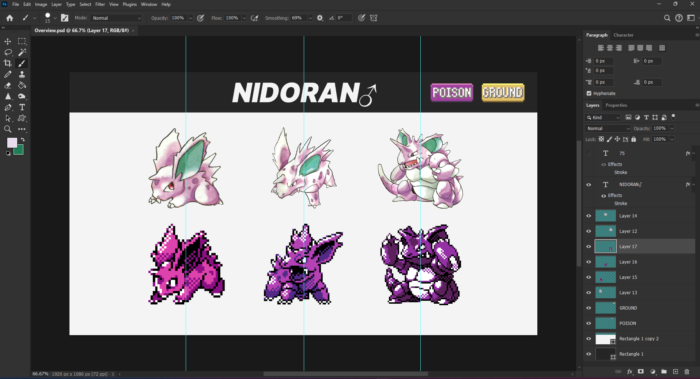
I love Photoshop, so, so much. I despise Adobe because of its greed, but the actual product is phenomenal. Looking back, I’ve been using it for over 20 years and I can’t imagine using anything else. I’ve tried GIMP, but it’s just so alien and detached from the Photoshop experience that I’m used to.
💡 Tip: Use rulers and guides as much as possible, experiment with tutorials and if you screw something up, keep going!
Recording: ShareX
Previous Recorders: Windows Snipping Tool
Website: https://getsharex.com
Cost: Free
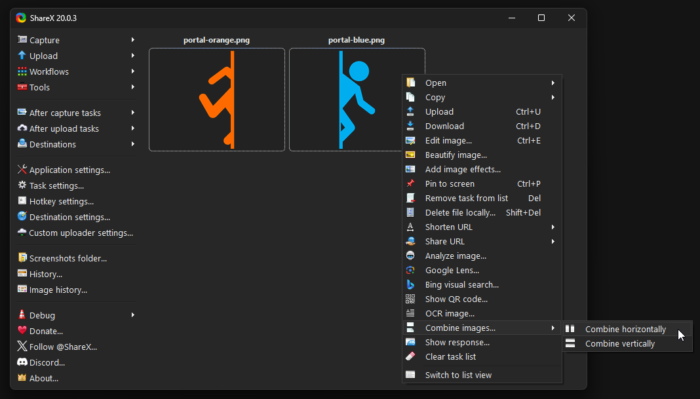
I’m really amazed more people aren’t using this tool, it’s easily the best recording/capturing software out there and it’s totally free. It captures high quality video, screenshots and puts them in neatly organised folders to go through later. I really like how you can do so much on the fly after pressing the hotkey like adding annotations, arrows, shapes, erase things etc.
💡 Tip: Immediately set your hotkeys to something memorable and condition yourself to use them. Also, check out every tool available to you on the hot bar at the top of the screen when you take a screenshot.
FTP: WinSCP
Previous FTP: CuteFTP → CoreFTP → FileZilla
Website: https://winscp.net/
Cost: Free
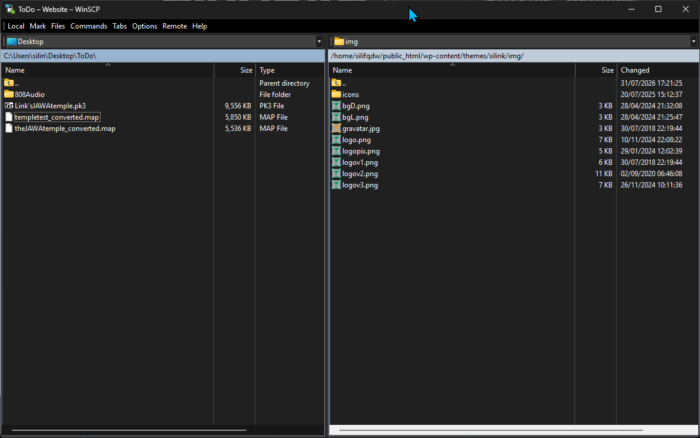
I’ve been through quite a few FTP programs, they either turn out clunky, insecure or become paid bloat nonsense. WinSCP hasn’t let me down in around 10 years and allows me to easily drag/drop my files on my web server.
💡 Tip: My favourite feature is the ability to edit files on the fly, so when I save e.g. my .php file, it auto uploads to my server. Saves SO much time.
Office: LibreOffice
Previous Office: Microsoft Office
Website: https://www.libreoffice.org
Cost: Free
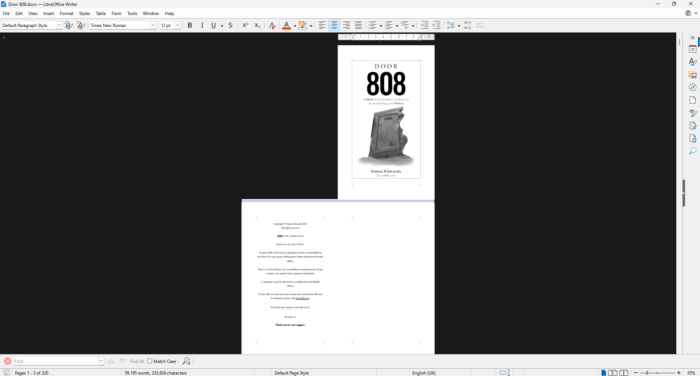
I’m a bit of a latecomer to LibreOffice. I had used Microsoft Office most of my life until I lost access to it when it became mostly focused on the cloud. Don’t get me wrong, I love the cloud experience, I’m a big Google Docs/Sheets user, but when I want to open something on my computer, LibreOffice Writer and Calc are my go to apps these days. They work flawlessly, and surprisingly give you a lot more control than MS Office ever did. I used it heavily when writing Door 808. I should’ve moved across a lot sooner, and honestly, I think when it comes time to depart from Windows, which will be very soon at this rate, it’ll act as my gateway to the wonderful world of Linux 🐧.
💡 Tip: There is endless documentation and questions online about LibreOffice, if you get stuck, look it up. You can do anything with Libre!
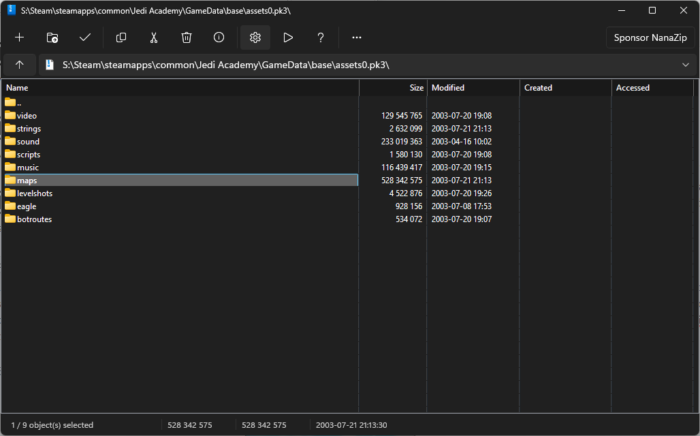
Archiver: NanaZip
Previous Archivers: WinZip → WinRAR → 7-Zip
Website: https://apps.microsoft.com/detail/9n8g7tscl18r?hl=en-GB&gl=GB
Cost: Free
Up until a few months ago, I had been using 7-Zip exclusively for a VERY long time. It must be around 15 years or so. I learnt not too long ago that 7-Zip had been mostly abandoned and wasn’t really receiving many updates. To be fair, you don’t really need to update apps like 7-Zip, but after Windows 11 came along, the right click context menu felt like an annoying barrier. I looked it up and others had the same problems, and they all recommended NanaZip. I gave it a go and haven’t looked back since. It’s actually a fork of 7-Zip which explains why it feels so natural to use, which a big plus being its clean updated UI. Big fan!
💡 Tip: Explore the settings and set the app exactly as you want, it’s surprisingly customizable, especially with context menus in Windows 11.
Multimedia Player: MPC-BE
Previous Players: Windows Media Player → Winamp → VLC → MPC-HC
Website: https://sourceforge.net/projects/mpcbe/
Cost: Free
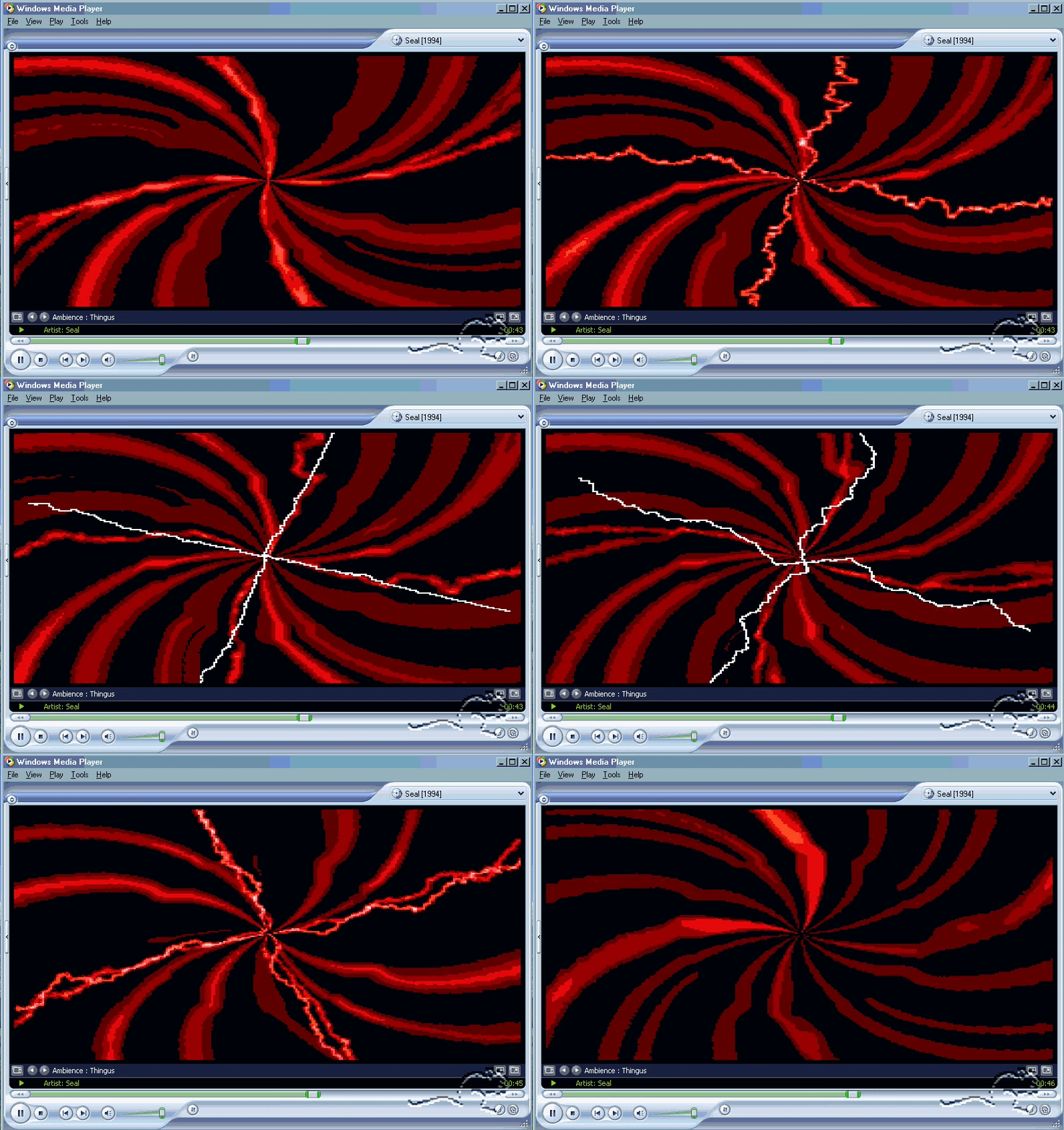
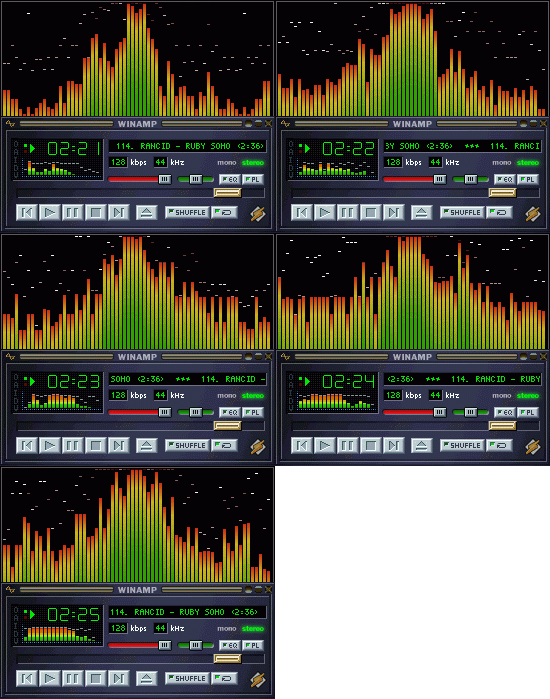
Media players in general have really fallen from grace in recent years with YouTube and Spotify taking over. Back in the day, you’d have a list of video/audio files and play them using something like Windows Media Player or Winamp. I don’t know how many hours I’d be listening to music and daydreaming while staring at the psychedelic visualizations. Nowadays, I use Media Player Classic – Black Edition (MPC-BE). I previously used MPC-HC but it is no longer maintained. It’s lightweight, customizable and lightning fast. It also supports more modern YouTube-esque features such as a video preview tooltip when hovering the mouse cursor over the seek bar.
💡 Tip: Similarly to other tips, explore the settings. There’s a lot that I turn off that people rely on. Also, don’t expect old school visualizations like Media Player 😔

Search: Everything
Previous Searchers: Windows Search 🤮
Website: https://www.voidtools.com/support/everything/
Cost: Free
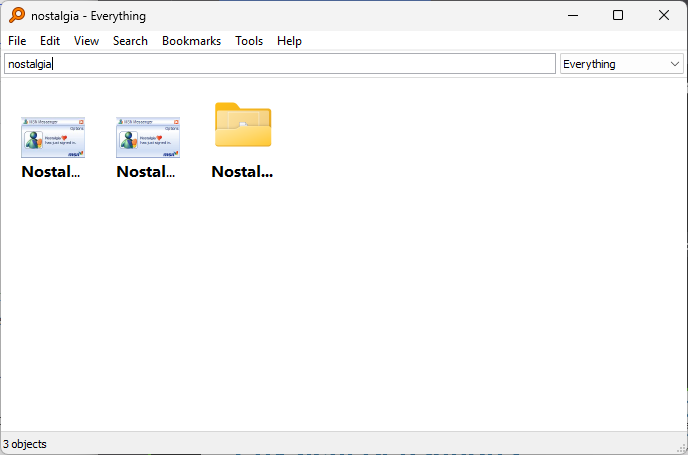
I don’t know how I used Windows without this, seriously. The search in Windows is notoriously bad. If I wanted to find “hello.docx” I’d have to wait about 3 minutes while it searches my drives, and most of the time it won’t find it. With Everything, I type it in, and it’s there, instantly. This is ESSENTIAL for me, I can’t use my computer without it.
💡 Tip: Make sure you’re indexing all your drives, it will save you a shit ton of time later!
Misc Tools
- HandBrake -A really powerful free tool that lets you convert videos and modify video files in many different ways.
- SageThumbs – A tool I’ve been using forever to show me .PSD previews in Windows.